Getting Started
This page helps you get productive with ClueLens right after installation. If you have not installed it yet, start with the installation guide.
Pin the extension icon
After installation, pin the ClueLens icon to the browser toolbar so it is always available:
- Click the puzzle icon in the browser toolbar
- Find ClueLens and click Pin
Once pinned, you can open the popup at any time.
Three usage modes
ClueLens provides three interfaces, and you can switch between them depending on the task.
Inline Panel
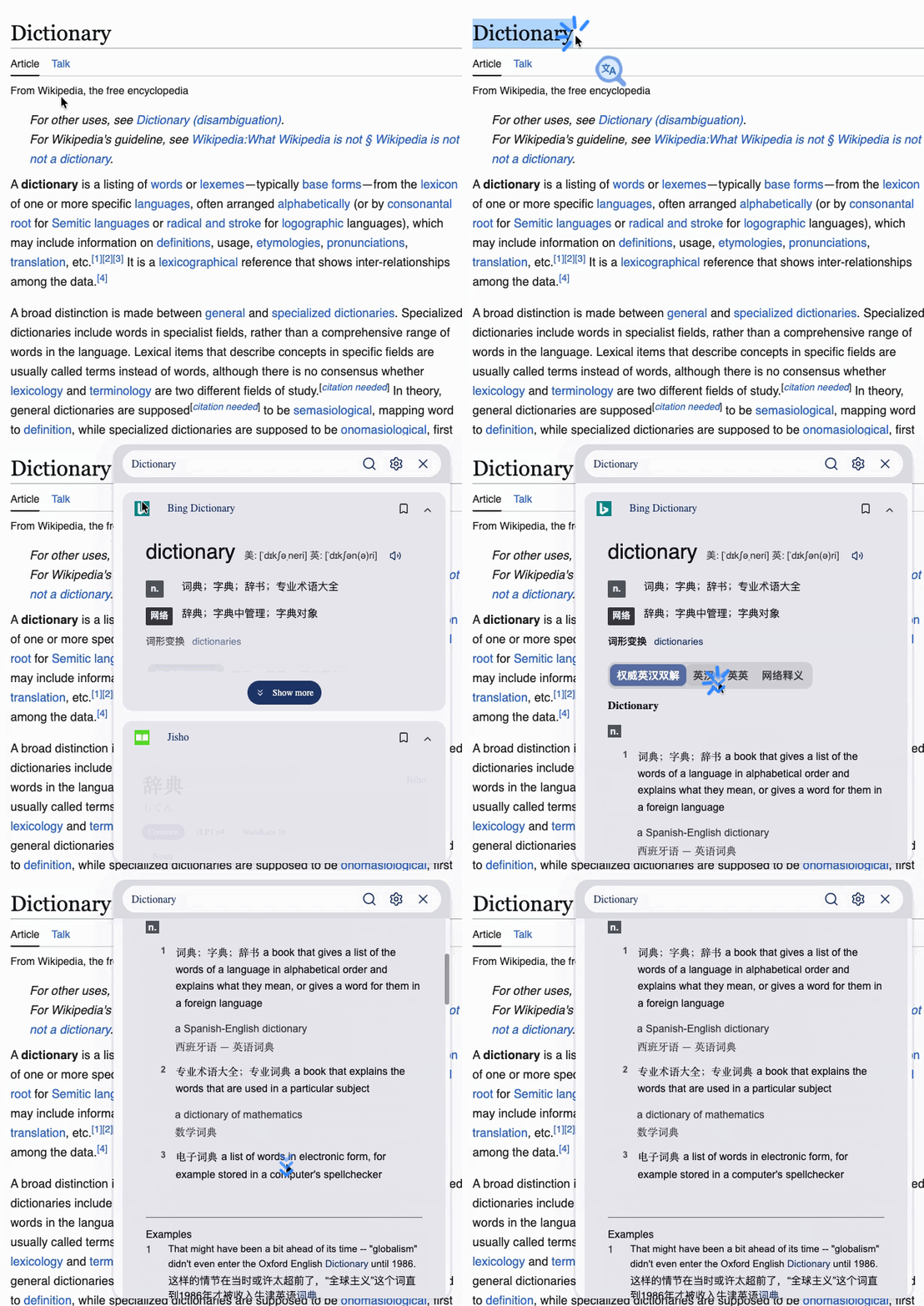
Select text on any web page and a small floating icon appears near the selection. Click it to open the lookup panel. The panel can be dragged and resized, and clicking outside closes it.
This is the default mode and works well for quick lookups while reading.
Popup
Click the ClueLens toolbar icon to open the standalone popup. Enter a word or sentence in the search box and press Enter to search.
This mode is useful when you do not want to cover the current page.
Side Panel
Right-click a page and choose ClueLens — Open Side Panel, or use a shortcut if you configured one. The side panel stays attached to the browser edge and can search automatically when you select text.
This mode works well for long-form reading or translation sessions.
Basic workflow
- Select a word or text on a web page
- If inline panel mode is enabled, a small icon appears near the selection
- Click the icon to open the lookup panel
- ClueLens queries all enabled dictionaries and translators in parallel
- Results appear source by source inside the panel
Manual search
In the popup and side panel, you can also type text into the top search box and press Enter.
Automatic search
Enable Auto search in Settings to run lookups immediately when text is selected, without clicking the inline icon.
Next
- See which services are available in Dictionaries & Translators
- Learn more about the core experience in Features
- Customize the extension in Settings